Input Subsystem
The UI system can receive input from other peripherals in the device, typical input devices are touchpads and buttons.
This chapter describes how to use input devices in the UI system and describes the processing of input information in detail.
Touchpad
The touchpad is one of the most commonly used input devices, and most of the time, the touchpad is integrated into the display panel. The workflow for touch information is shown in the figure below.
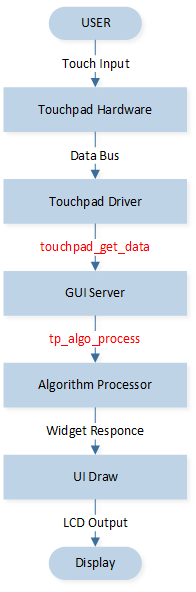
Touchpad Information Flow
Touchpad Hardware and Driver
Although different touchpad chips have different message data structures, the message always contains the touch status and the coordinates of the touch point. In order to transmit coordinate information, a data bus is needed, and I2C is the most commonly used data bus between touch chips and microprocessors.
In addition, different touch chips need to use different drivers according to their specifications, which needs to be ported.
Get Touchpad Data
In the port_touchpad_get_data function, the touch information will be fetched in drv_touch_read, processed briefly, and fed into the touch algorithm handler as raw data.
gui_touch_port_data_t *port_touchpad_get_data()
{
    uint16_t x = 0;
    uint16_t y = 0;
    bool pressing = 0;
    if (drv_touch_read(&x, &y, &pressing) == false)
    {
        return NULL;
    }
    if (pressing == true)
    {
        raw_data.event = 2;
    }
    else
    {
        raw_data.event = 1;
    }
    raw_data.timestamp_ms = os_sys_tick_get();
    raw_data.width = 0;
    raw_data.x_coordinate = x;
    raw_data.y_coordinate = y;
    //gui_log("event = %d, x = %d, y = %d, \n", raw_data.event, raw_data.x_coordinate, raw_data.y_coordinate);
    return &raw_data;
}
The data structure of the raw data is gui_touch_port_data_t.
Touchpad Algorithm Processor
The code implementation of the touchpad algorithm processing is in the tp_algo_process function. Gesture recognition is performed by judging changes in X-axis and Y-axis coordinate data, as well as touch time. The input types obtained after the algorithm processing are as follows.
typedef enum
{
    TOUCH_INIT                  = 0x100,
    TOUCH_HOLD_X,
    TOUCH_HOLD_Y,
    TOUCH_SHORT,
    TOUCH_LONG,
    TOUCH_DOUBLE,
    TOUCH_TRIPLE,
    TOUCH_ORIGIN_FROM_X,
    TOUCH_ORIGIN_FROM_Y,
    TOUCH_LEFT_SLIDE,
    TOUCH_RIGHT_SLIDE,
    TOUCH_UP_SLIDE,
    TOUCH_DOWN_SLIDE,
    TOUCH_LEFT_SLIDE_QUICK,
    TOUCH_RIGHT_SLIDE_QUICK,
    TOUCH_UP_SLIDE_QUICK,
    TOUCH_DOWN_SLIDE_QUICK,
    TOUCH_SHORT_BUTTON,
    TOUCH_LONG_BUTTON,
    TOUCH_UP_SLIDE_TWO_PAGE,
    TOUCH_DOWN_SLIDE_TWO_PAGE,
    TOUCH_INVALID              = 0x1FF,

    KB_INIT                     = 0x200,
    KB_SHORT                    = 0x201,
    KB_LONG                     = 0x202,
    KB_INVALID                 = 0x2FF,

    WHEEL_INIT                  = 0x300,
    WHEEL_ING,
    WHEEL_FINISHED,
    WHEEL_INVALID              = 0x3FF,
} T_GUI_INPUT_TYPE;
The algorithm processor fills in the touch_info_t structure, which is available to all widgets.
Widget Response
Since all widgets inherit from the base class gui_obj, almost any widget can respond to touch events by binding a callback with gui_obj_add_event_cb. A rich set of touch event types is available, such as click (GUI_EVENT_TOUCH_CLICKED), long press (GUI_EVENT_TOUCH_LONG), and slides in all directions. In addition, a widget can also adjust its display according to the real-time touch coordinates in the touch_info_t structure.
Internally, a widget obtains and processes touch information via tp_get_info in its preparation function (such as gui_win_prepare).
At the application level, a callback function can be bound to a widget's event. For example, the following callback sets the incoming-call flag when it is triggered:
static void switch_call_incoming(void *obj, gui_event_t *e)
{
    (void)obj;
    (void)e;

    *gui_call_incoming_flag_get() = true;
}
After creating a widget, use gui_obj_add_event_cb to bind this callback to the widget's click event GUI_EVENT_TOUCH_CLICKED:
// compass icon
gui_img_t *img = gui_img_create_from_mem(win_watch, "CLOCK_COMPASS_DIAL",
                                         UI_CLOCK_COMPASS_DIAL_ICON_BIN, 155, 348, 0, 0);
gui_img_set_quality(img, true);
gui_obj_add_event_cb(img, (gui_event_cb_t)switch_call_incoming, GUI_EVENT_TOUCH_CLICKED,
                     NULL);
In this example, after an image widget is created, gui_obj_add_event_cb binds its click event to the callback switch_call_incoming, which is executed whenever the widget is clicked.
Keyboard
The workflow for keyboard information is shown in the figure below.
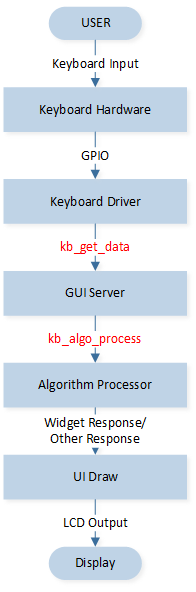
Keyboard Information Flow
Hardware and Driver
The hardware design and driver program of the keyboard are relatively simple. Here, we will demonstrate this using a single GPIO. For information on how to use GPIO, please refer to the instructions in the SDK. You can use the general API in rtl87x2g_gpio.c or the encapsulated API in drv_gpio.c to accomplish the same tasks.
Get Keyboard Data
Keyboard input is registered through gui_kb_create. Call gui_kb_create once for each physical key, passing the key name along with pointers to the key state, press timestamp, and release timestamp variables:
gui_kb_create("Home", &home_state,
              &home_timestamp_ms_press,
              &home_timestamp_ms_release);
gui_kb_create("Back", &back_state,
              &back_timestamp_ms_press,
              &back_timestamp_ms_release);
gui_kb_create("Menu", &menu_state,
              &menu_timestamp_ms_press,
              &menu_timestamp_ms_release);
gui_kb_create("Power", &power_state,
              &power_timestamp_ms_press,
              &power_timestamp_ms_release);
When porting, users need to update these state variables and timestamps whenever the key state changes (for example, in a GPIO interrupt); the system reads the key information through the registered pointers.
Keyboard Algorithm Processor
The code implementation of the keyboard algorithm processing is in the kb_algo_process function. When a key is released, it judges whether the input is a short press or a long press based on the press duration, and dispatches a GUI_EVENT_KB_SHORT_PRESSED or GUI_EVENT_KB_LONG_PRESSED event to the currently focused widget. The algorithm processor also fills in the kb_info_t structure, which is available to all widgets.
Response
A widget responds to keyboard events by binding a callback with gui_obj_add_event_cb: a short press corresponds to GUI_EVENT_KB_SHORT_PRESSED and a long press to GUI_EVENT_KB_LONG_PRESSED. For example, binding a callback to a widget's short-press event:
gui_obj_add_event_cb(view, click_button_back_2_watchface_or_menu, GUI_EVENT_KB_SHORT_PRESSED, NULL);